








Security Update
Multi-Factor Authentication (MFA) Setup
Enhanced account protection for CapSTAR and all Capital Programs Application websites
📢
What’s Changing
When logging into UCLA Capital Programs Application websites, you will now be required
to complete an additional verification step beyond your username and password.
This enhanced MFA requirement strengthens account protection and helps safeguard
sensitive project and financial information.
⚠️
Why This Is Required
This update is necessary to comply with UC cybersecurity standards and reduce the risk
of unauthorized access, phishing, and credential compromise.
MFA Setup Instructions
-
Log into CapSTAR at https://applications.capnet.ucla.edu/ using the manual login located in the middle of the screen.
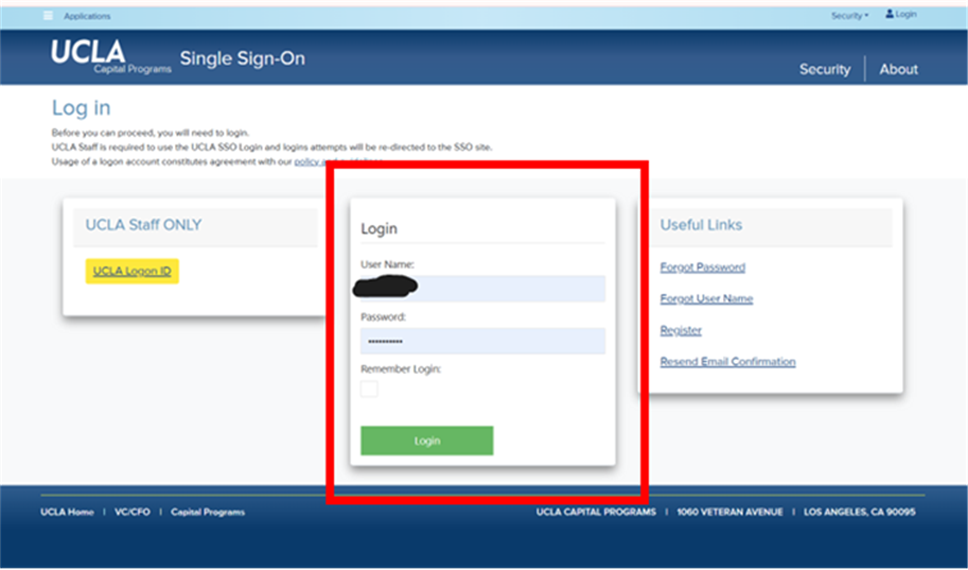 ⚠️ Do NOT use the yellow “UCLA Logon ID” button.
 -
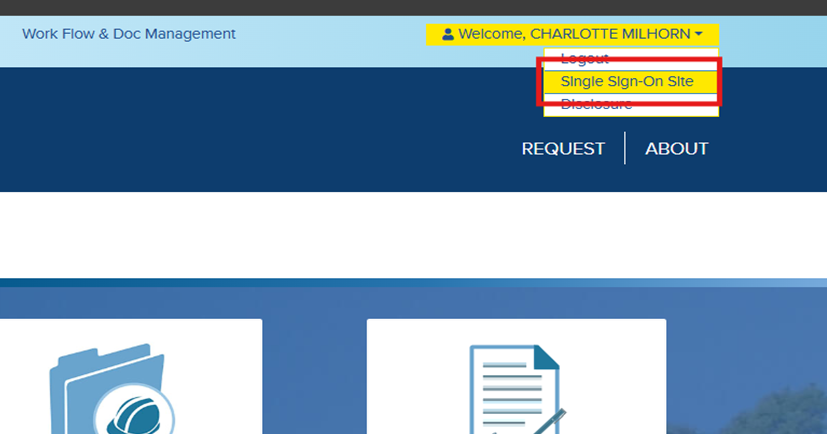
Click on the “Welcome” text in the upper right-hand corner of the page. A drop-down menu will appear — select “Single Sign-On Site”.
-
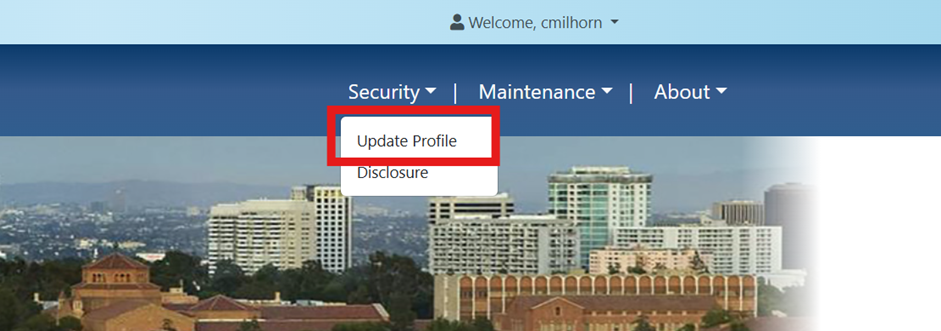
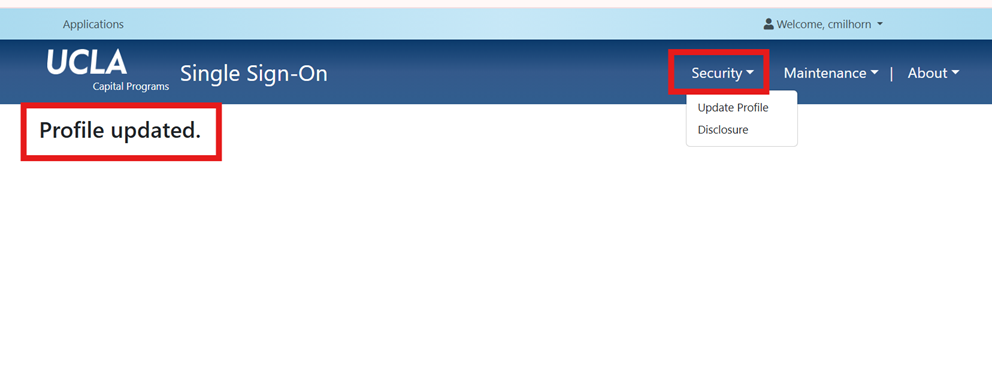
Once logged in, select the “Security” menu item, then choose “Update Profile”.
-
Scroll to the bottom and enter the phone number associated with a multifactor authenticator app (e.g., if you have multiple phones, use the one that has Duo Mobile installed). Complete any other required fields marked with a red asterisk (*).
→ Click the Update button.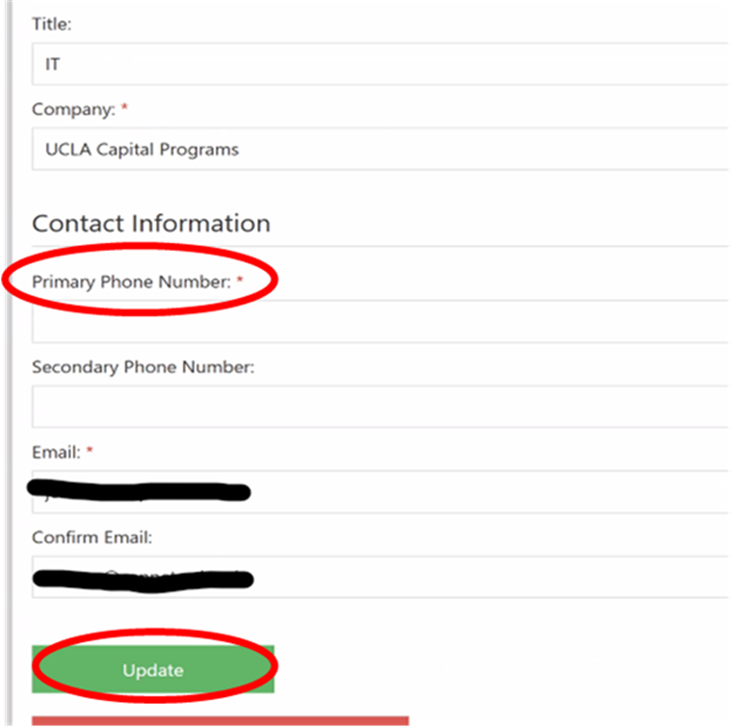
-
After updating your phone number or other information, navigate back to “Security” → “Update Profile” to confirm the changes were saved.
-
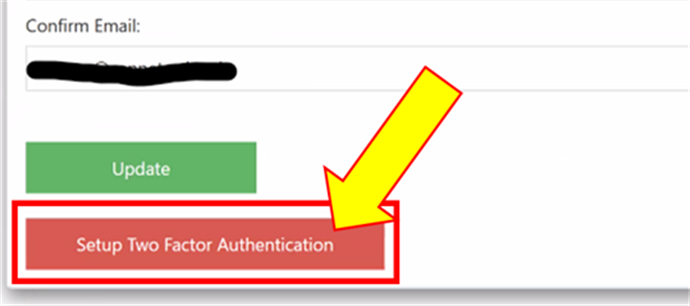
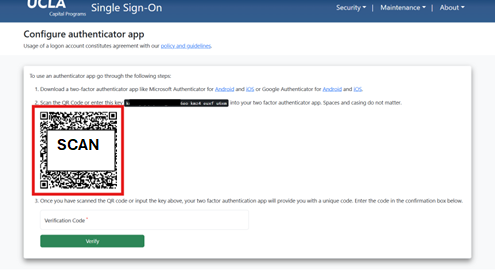
If your profile information is accurate, scroll to the bottom and click the Setup Two Factor Authentication button.
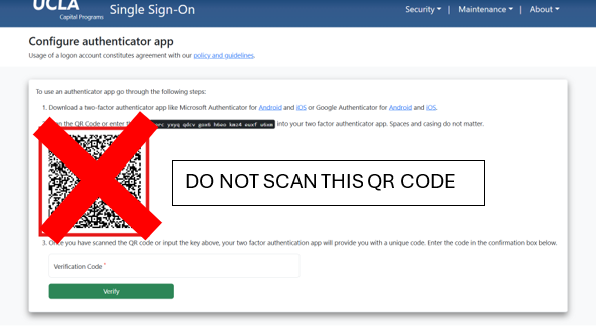
 🚫 DO NOT SCAN THE QR CODE YET — complete steps 7–10 on your phone first.
 -
Get your authenticator app ready on your phone.



 💡 Note: You can use any authenticator app you prefer — Duo Mobile, Google Authenticator, Microsoft Authenticator, Authy, etc. Each app has its own flow; the example below uses Duo Mobile.
 -
The following steps use Duo Mobile as the example authenticator app.
-
On your phone, open the Duo Mobile app.
→ In the upper right corner, tap the blue “Add +” button.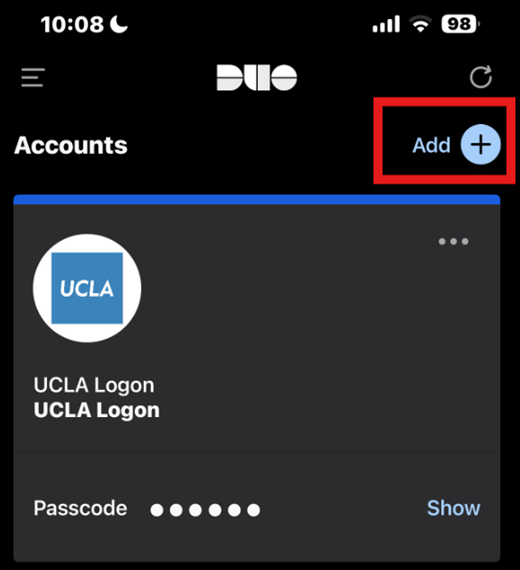
-
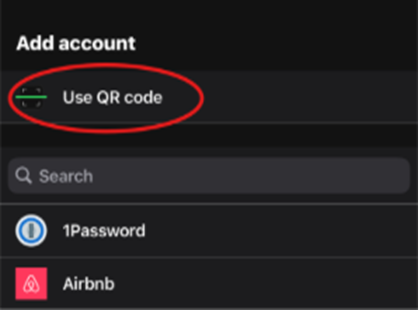
Select “Use QR code.” Now point your phone’s camera at the QR code displayed in your computer browser.
-
An Account tab will appear in your Duo app labelled “Third-Party.”
Rename the “Account name” field to “UCLA CapSTAR” (or any name that is easy for you to identify).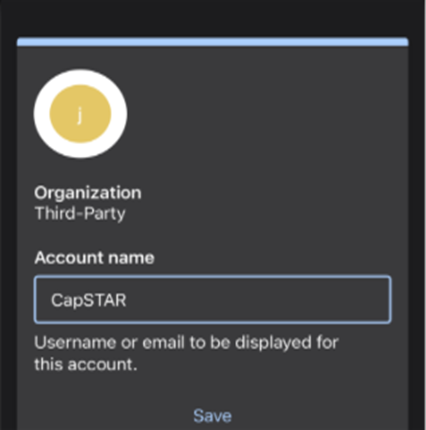
-
Enter the 6-digit passcode shown in your authenticator app into the “Enter Verification Code” field on the CapSTAR website.
→ Click Verify.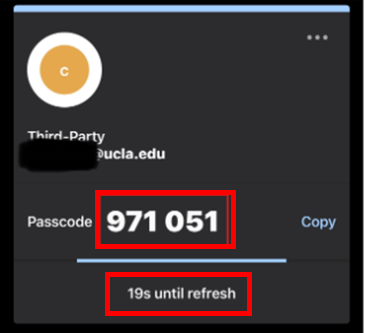
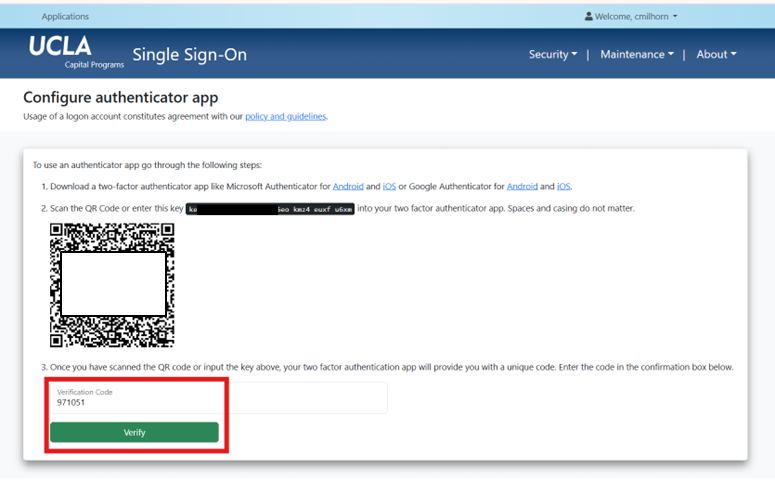 🔄 These 6-digit codes refresh every 30 seconds.
 -
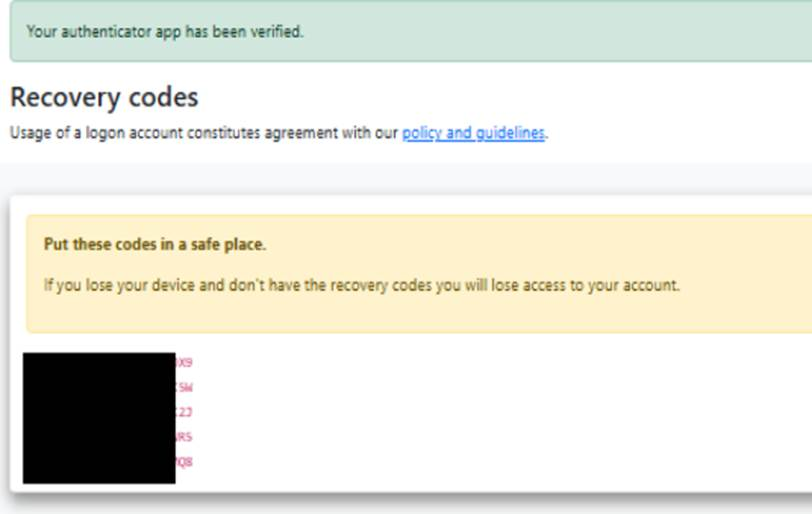
Single-Use Recovery Codes will be generated. Save all five codes to a secure location immediately (e.g., a password manager or secure printed copy).
-
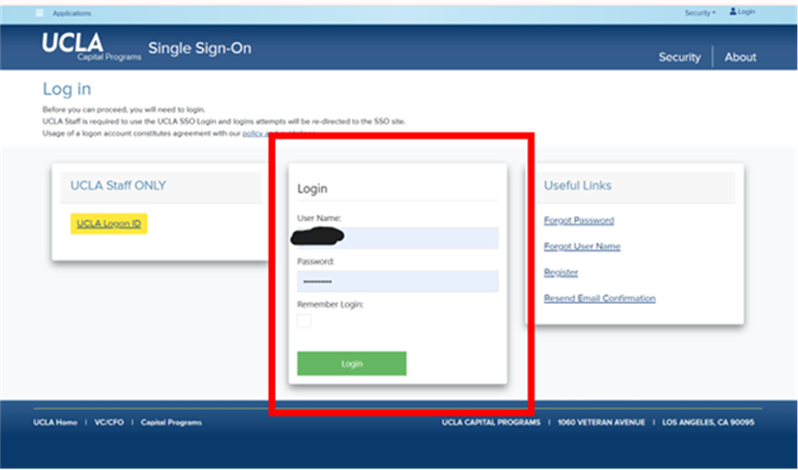
Re-Test your MFA setup:
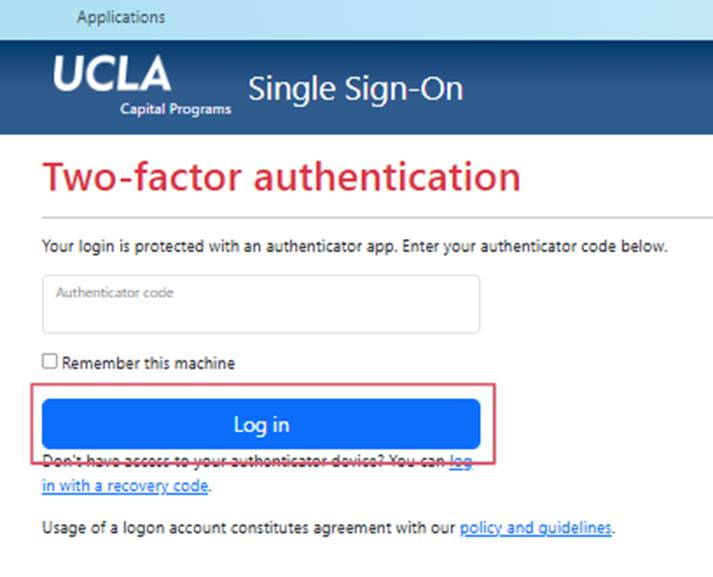
- Log into CapSTAR — a code verification window will appear.
- Open your authenticator app and select the “CapSTAR” account. Note: the app will NOT display a pop-up — manually open it and tap “Show” to see the 6-digit passcode.
- Type the 6-digit code into the verification window.
- Click Log in.
-
If login fails:
→ Click the blue “Login with a Recovery Code” link and use any one of the recovery codes saved in Step 13.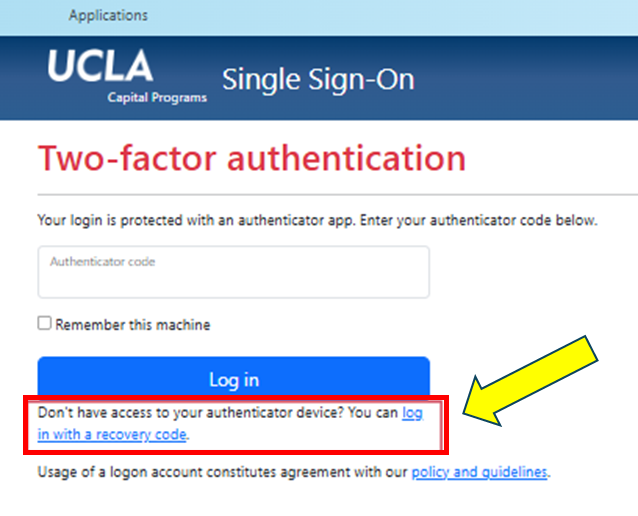
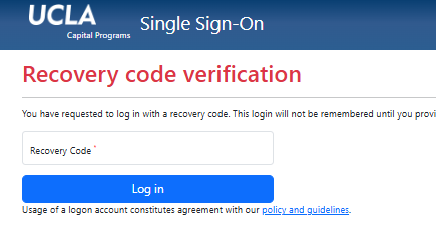
🔑 About Your Recovery Codes
Recovery Codes are single-use only — once a specific code has been entered and validated it cannot be used again. Five codes are generated so you have ample backup options. Store them in a password manager or another secure location.
Need Help?
If you experience any issues logging in or completing MFA setup, please contact IT Support:
📧
ITSupport@capnet.ucla.edu